
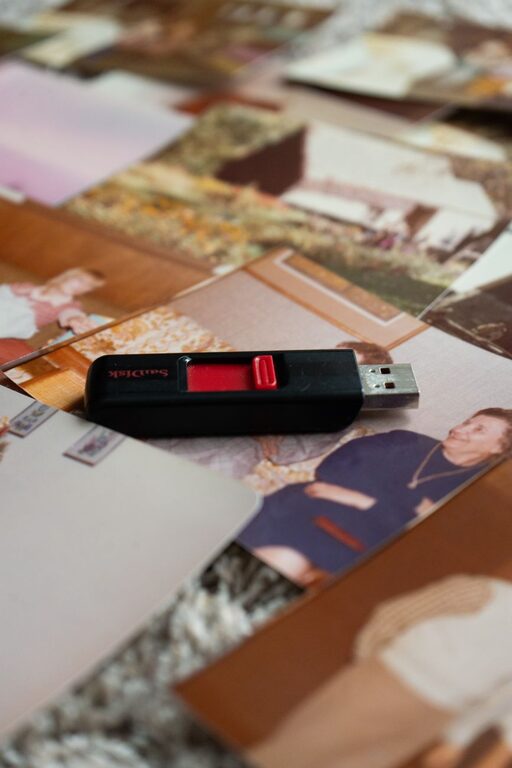
Digital photos are easy to take and difficult to manage. A few years of phone pictures, screenshots, downloads, and shared images can quickly become a crowded collection. When everything is stored in one large camera roll, finding a favorite memory may take longer than expected.
The good news is that organizing photos does not require a perfect system or expensive software. A few consistent habits can make your collection easier to search, protect, and enjoy. The key is to create a system that is simple enough to maintain.
Start With a Clear Goal
Before moving files, decide what you want your photo library to do for you. You may want to:
– Find photos from a specific trip quickly
– Keep family and personal memories together
– Remove duplicate or unwanted images
– Create albums for printing or sharing
– Protect photos if a device is lost or damaged
Your goal will guide the system you choose. If you mainly need fast searching, dates, locations, and keywords may be most useful. If you prefer browsing, folders and albums can provide a more visual approach.
Avoid trying to organize every photo perfectly in one session. A practical system is better than an ambitious one that becomes difficult to maintain.
Gather Photos Into One Main Library
Photos are often spread across phones, computers, memory cards, external drives, messaging apps, and cloud services. Begin by making a list of where your images are stored.
Common locations include:
– Smartphone camera rolls
– Computer folders
– External hard drives
– Cloud photo services
– Social media downloads
– Email attachments
– Old memory cards
Choose one main library where your best and most important photos will live. This might be a photo management app, a computer folder, or a cloud-based service. The main library should be easy for you to access and large enough for your collection.
Do not delete photos from other locations immediately. First, copy them into the main library and confirm that the files transferred correctly.
Use a Simple Folder Structure
A folder system should be predictable. One of the easiest methods is to organize photos by year, then by month or event.
For example:
“`text
Photos
2024
2024-01 New Years Day
2024-04 Spring Trip
2024-08 Family Reunion
2025
2025-02 Weekend Visit
2025-07 Beach Vacation
“`
Using the year and month at the beginning of a folder name keeps folders in chronological order. Adding an event name makes them easier to recognize.
You can also use broad categories such as:
– Family
– Travel
– Holidays
– Pets
– Home projects
– Work or school
However, avoid creating too many categories. A folder called “Miscellaneous,” along with dozens of very specific folders, can make the system harder to use. Start with a few categories and adjust them if your collection grows.
Name Files Consistently
File names from phones and cameras are often difficult to understand, such as IMG_4821 or DSC_1098. Renaming every photo may not be practical, but renaming important groups can help.
A useful format is:
“`text
2025-07-14_Beach-Trip_001
“`
This format includes:
– The date
– The event or location
– A sequence number
You do not need to rename every individual image. Consider renaming photos when you create a special album, prepare images for a family archive, or move important files to long-term storage.
Remove Photos Carefully
Deleting unwanted photos can free up space and make favorite memories easier to find. Work slowly, especially when reviewing older images.
Look for:
– Blurry pictures
– Accidental shots
– Repeated screenshots
– Multiple versions of the same image
– Images with poor lighting or blocked views
– Temporary downloads and memes
When several photos show the same moment, keep the best one or two. If you are unsure about an image, move it to a temporary folder called “Review Later” instead of deleting it immediately.
A helpful approach is to review photos in short sessions. For example, spend 15 minutes each week cleaning one month or one event. This prevents the process from becoming overwhelming.
Create Albums for Favorite Memories
Folders help organize files, while albums help you enjoy and share them. Create albums for meaningful groups such as:
– Best photos of each year
– Family celebrations
– Favorite trips
– Important milestones
– Seasonal memories
– Photos of pets
– Images to print or frame
Keep albums focused. An album with 50 carefully selected photos is often more useful than one containing 1,000 images. You can also create a yearly “favorites” album with a small selection of your most memorable pictures.
Do not move the original files when creating an album unless your software requires it. In many photo apps, an album is simply a collection of links to the original images. This allows one photo to appear in several albums without creating extra copies.
Add Useful Information
Photo apps often allow you to add captions, locations, people, or keywords. You do not need to label every image. Focus on photos that may be difficult to identify later.
Useful details might include:
– The event name
– The city or location
– The names of people in the photo
– A short description
– The reason the moment is important
For example, “Grandpa’s garden, July 2025” is more helpful than a generic file name. These details can also make built-in search tools more effective.
Be thoughtful when adding personal information, especially if photos are shared through online services. Use only the details you are comfortable storing or sharing.
Keep More Than One Backup
Organization protects your time, but backups protect your memories. A single copy can be lost if a device fails, is damaged, or is misplaced.
A practical backup plan includes:
- Your main photo library
- A second copy on another device or drive
- An additional copy stored in a separate location or trusted cloud service
An external drive can provide a useful local backup. A cloud service can help protect against problems affecting your home, while also making photos available across devices.
Set a schedule for backups, such as once a week or once a month. If your photo service supports automatic backup, turn it on and check occasionally that new photos are being saved.
Protect the Original Files
When editing photos, try to preserve the original image. Many photo apps save edits separately, but some programs permanently change the file.
For important photos:
– Keep the original file
– Save edited copies with a clear name
– Avoid repeatedly exporting and compressing the same image
– Use a high-quality format when saving important versions
– Check that dates and locations are not accidentally removed
You may also want to keep full-resolution originals and create smaller copies for texting, email, or social media. This gives you flexibility without replacing the best-quality version.
Make Organization a Regular Habit
A photo system works best when it becomes part of your routine. Set aside a few minutes after vacations, celebrations, or busy periods to sort new images.
A simple monthly routine could include:
– Importing new photos
– Removing obvious duplicates
– Adding event names or captions
– Selecting favorite images
– Confirming that backups are current
– Creating an album for important moments
Once or twice a year, review your folders and update your backup plan. Technology and storage needs change, so it is helpful to confirm that you can still open and access older files.
Enjoy the Memories You Organize
The purpose of organizing photos is not simply to create tidy folders. It is to make your memories easier to revisit. Print a favorite image, create a digital slideshow, share an album with family, or set a meaningful photo as a device background.
Start with one small section of your collection rather than attempting to fix everything at once. With clear folders, thoughtful albums, careful deletion, and reliable backups, your digital photos can remain organized and available for years to come.